
Meet the new Bitcart checkout
A checkout rebuilt from scratch in Bitcart 0.11, with a clearer payment flow, browser wallet payments, receipts and refunds.
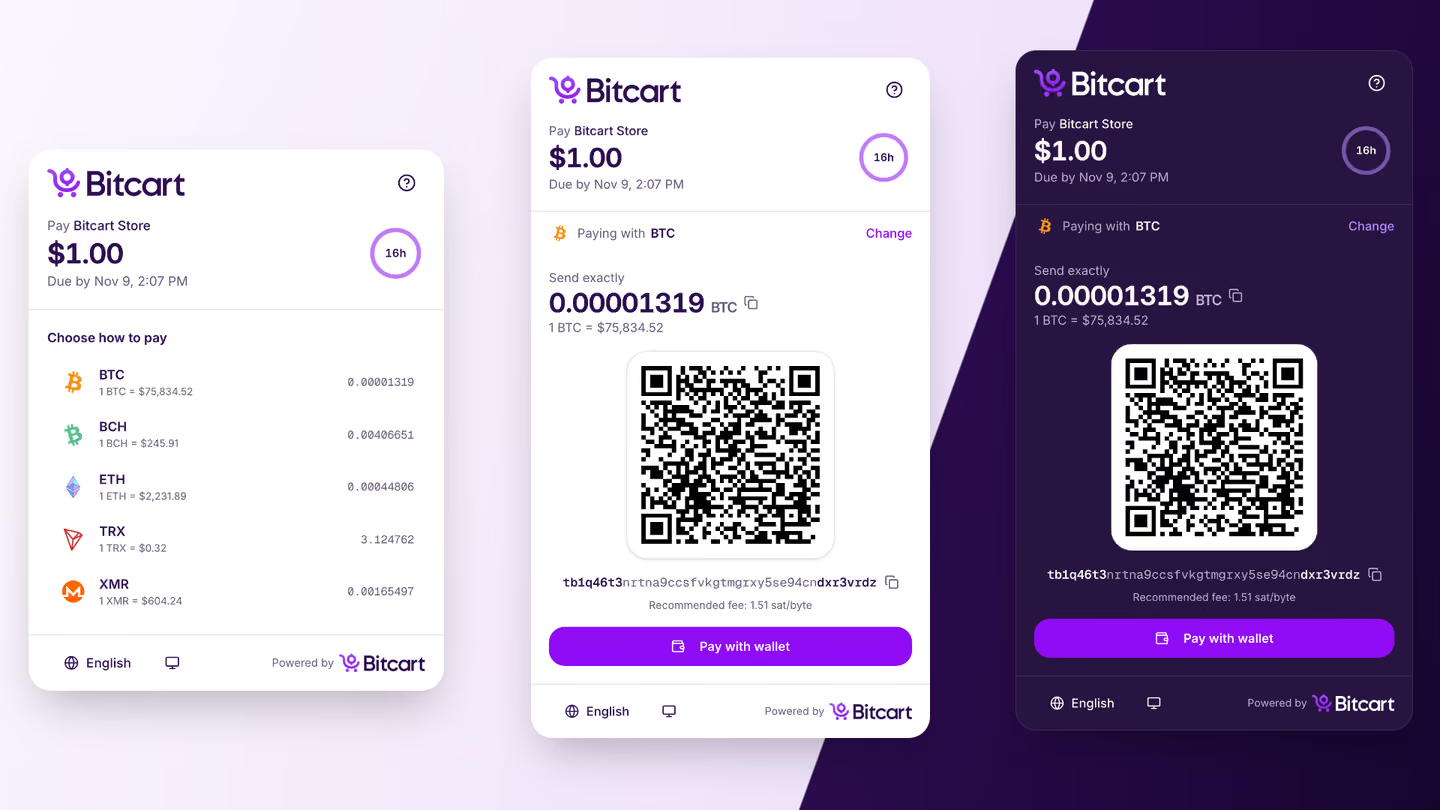
Bitcart 0.11.0.0 comes with a brand new checkout. We built it from scratch in our new frontend stack, and it replaces the invoice and refund pages of the admin panel together with the payment modal. It is the page every customer sees when paying a Bitcart invoice.
Most screenshots below are from a real invoice on our testnet instance. The ones showing "Example Store" come from the checkout's preview mode, which we use to render states that are hard to reach on a real invoice, like a partial payment.
Paying an invoice
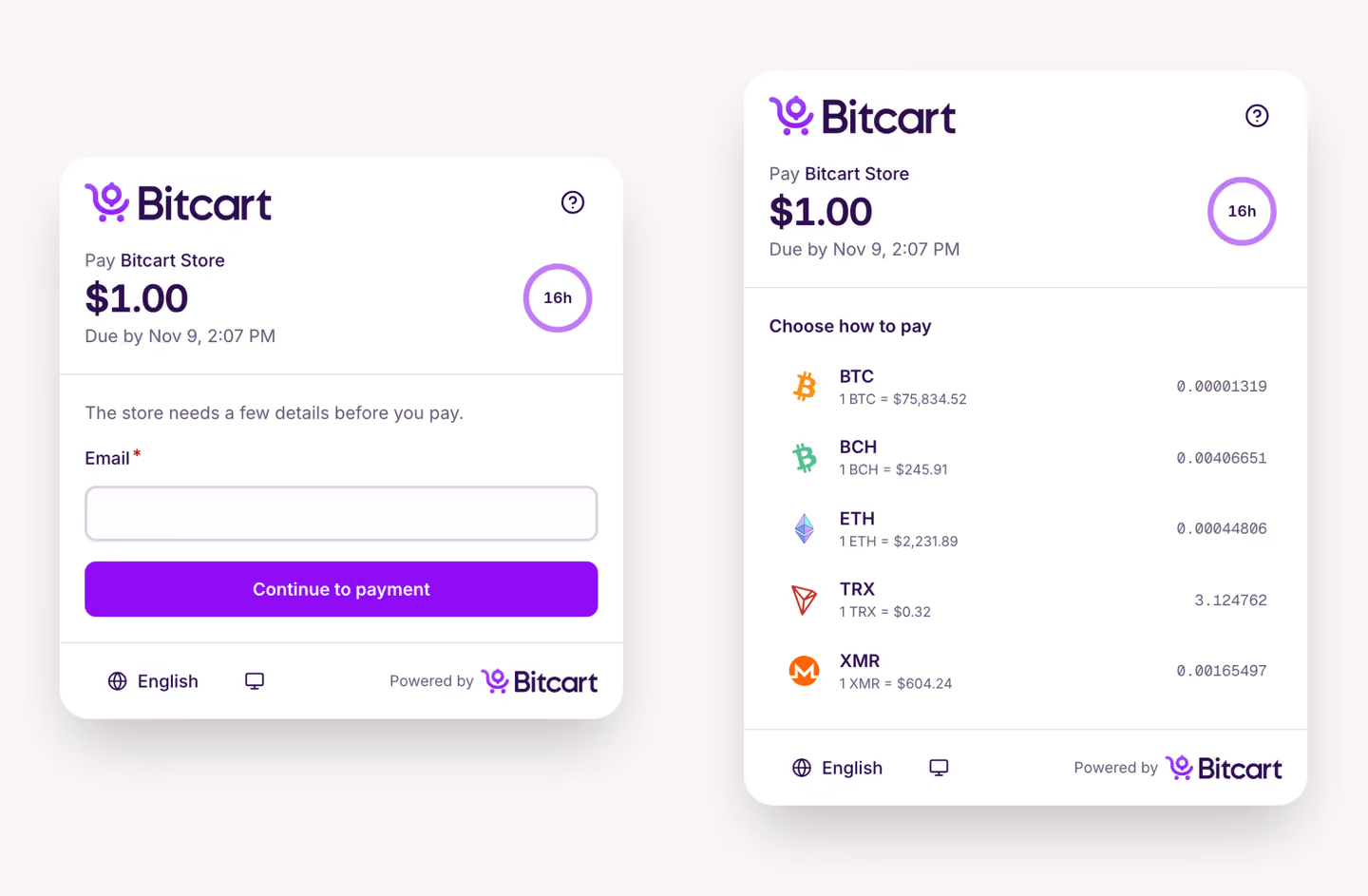
If the store needs some details from the customer, like an email, the checkout asks for them first. The header stays the same on every step: who you are paying, how much, when the invoice is due, and a ring counting down the time left.
Then the customer chooses how to pay. Each payment method shows the exact amount and the exchange rate used, so it's easy to compare coins before picking one.
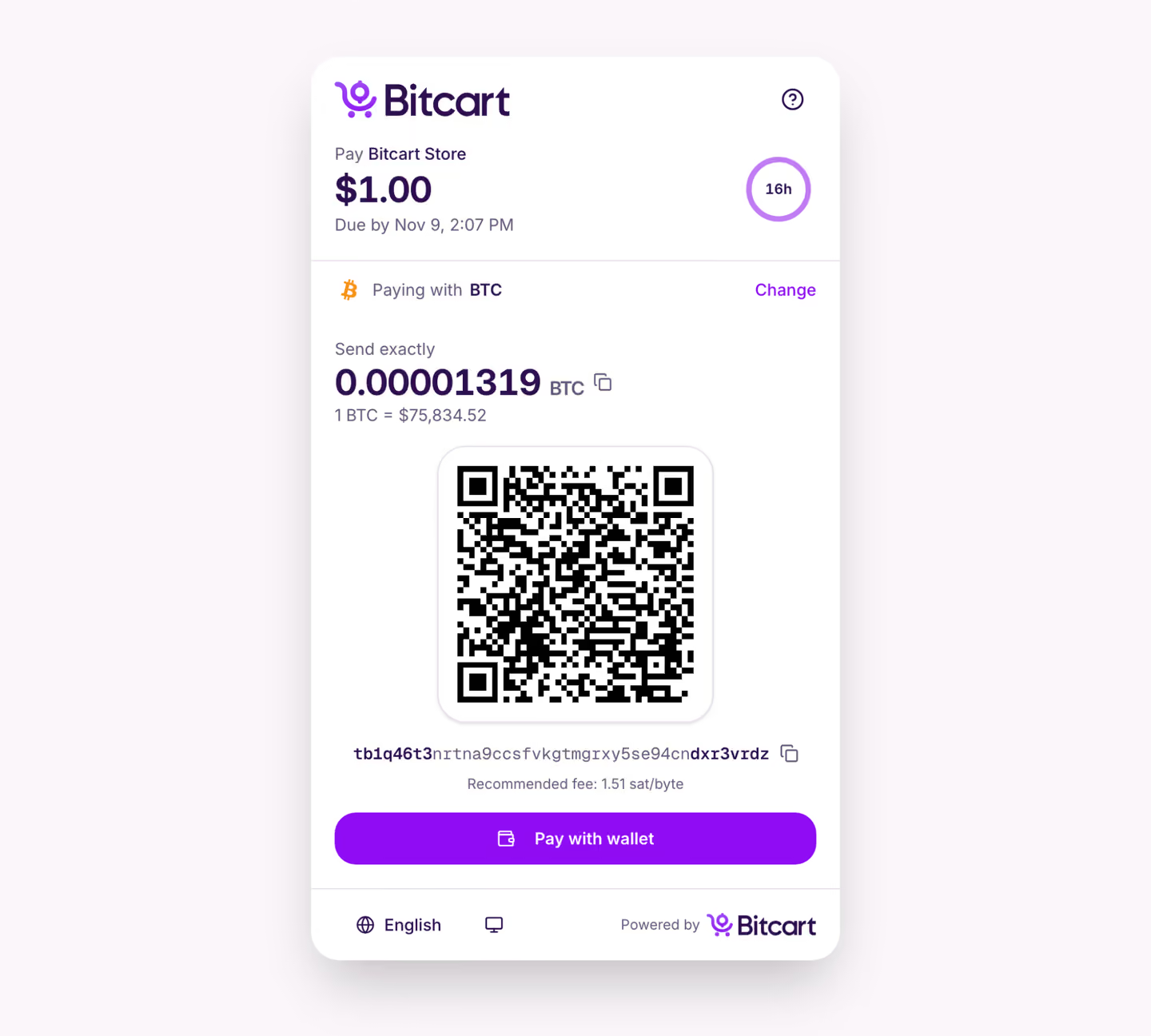
After that, the checkout shows exactly what to send: the amount (with a copy button), a QR code and the address. The first and last characters of the address are highlighted, to make it easier to check against the address pasted in the wallet. For BTC the recommended fee rate is shown too, and the "Change" link goes back to the list of payment methods.
Partial payments and network fees
Sometimes customers send less than they should. In that case the header shows what's left to pay in fiat, and the payment page asks to send the rest in crypto.
"Price breakdown" lists where the amount comes from: the order amount, the network fee if the store charges one, each payment already received, and what is still due.
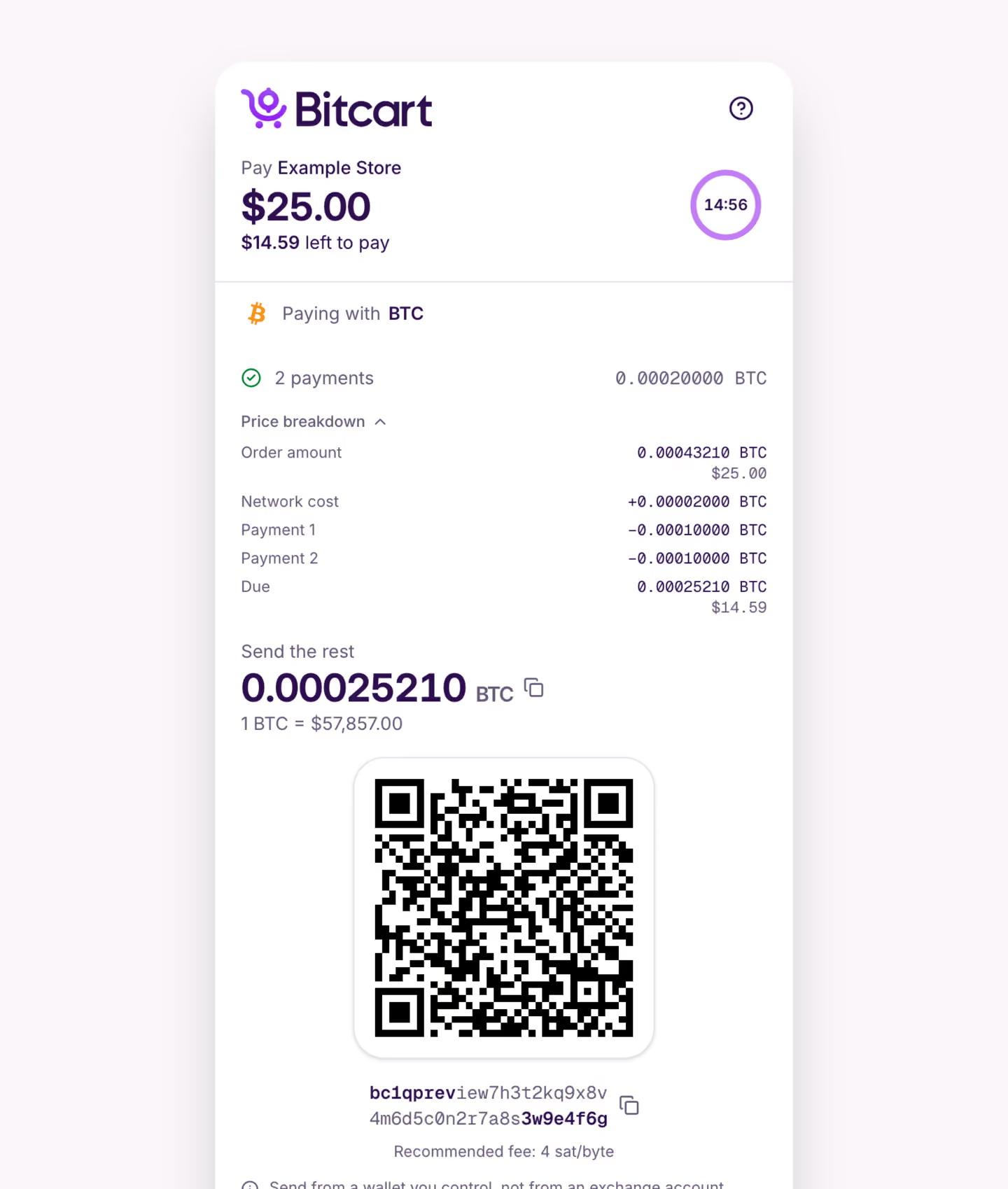
The help button in the top right corner answers common questions, for example what to do after sending less than the full amount, or when the store hasn't credited a payment yet.
Paying with a wallet
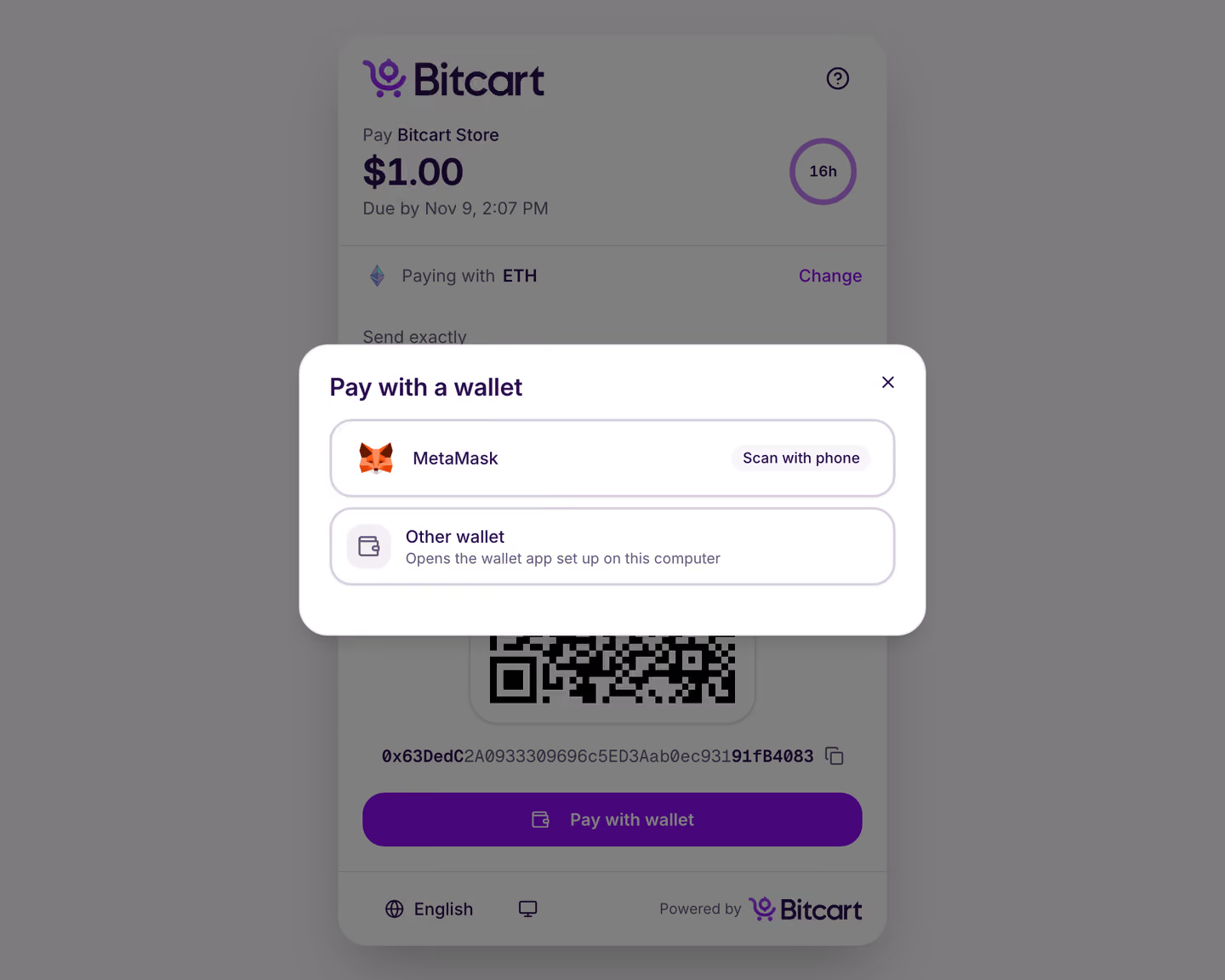
Customers can now pay straight from a browser wallet: MetaMask and other injected wallets on ETH-based chains, and TronLink on TRON. The checkout fills in the amount and the address, the customer only confirms the transaction in the wallet.
Without a browser wallet, "Pay with wallet" offers mobile wallet apps to open the payment in, by scanning a QR code with the phone: MetaMask on ETH-based chains, Trust Wallet on Ethereum, BNB Smart Chain, Polygon and TRON, and TronLink on TRON. "Other wallet" opens whatever wallet app is set up on the computer.
After the payment
Once the invoice is paid, the checkout shows a confirmation with a link to the new receipt page. The receipt has the invoice and order IDs, the products, the amount paid in fiat and crypto, the exchange rate and a link to the transaction, and it can be printed.
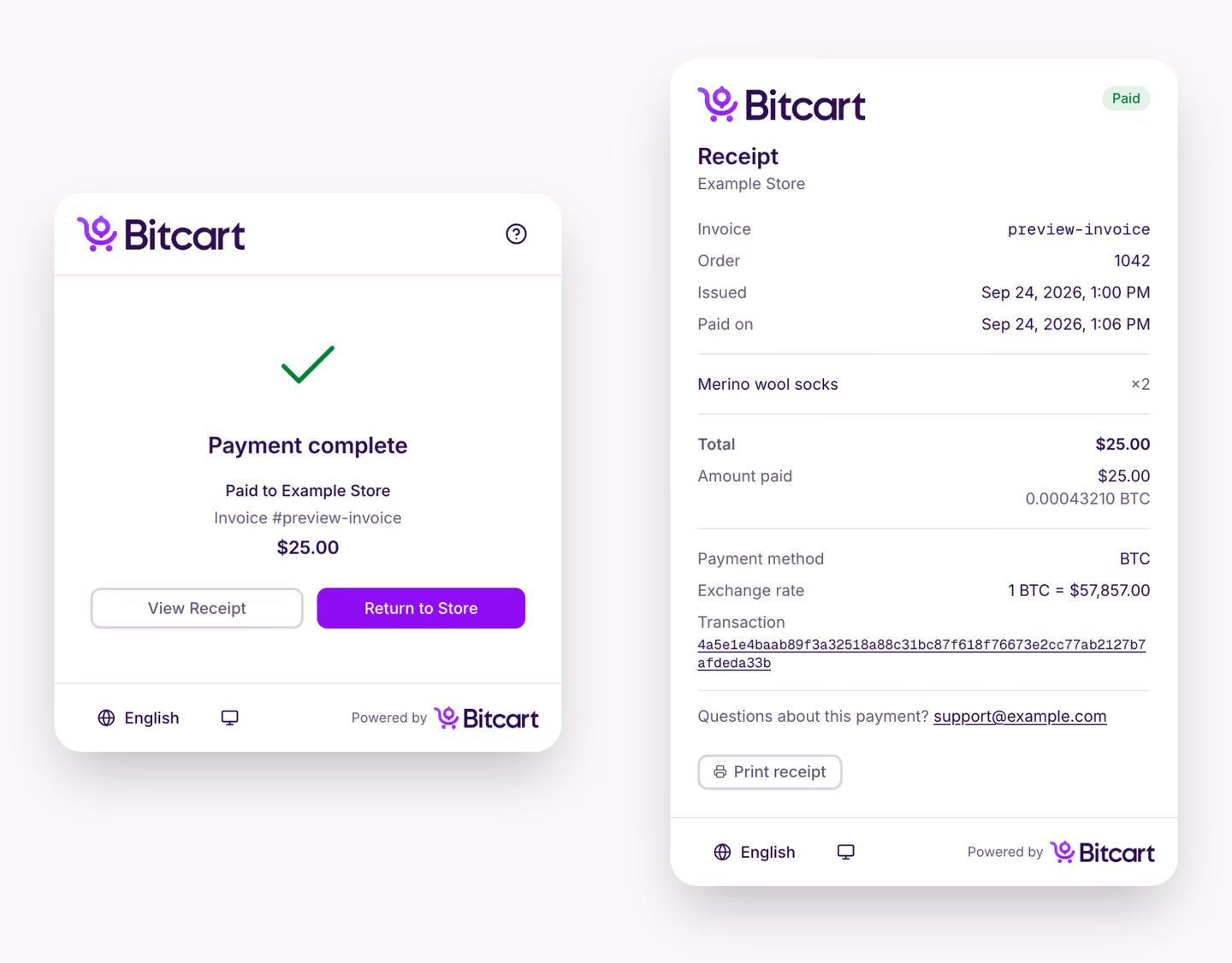
Two new store checkout settings control this part. auto_redirect sends buyers back to the invoice's redirect URL after payment, and is enabled by default. support_email and support_url are shown to buyers, so they know whom to contact about a payment.
Refunds
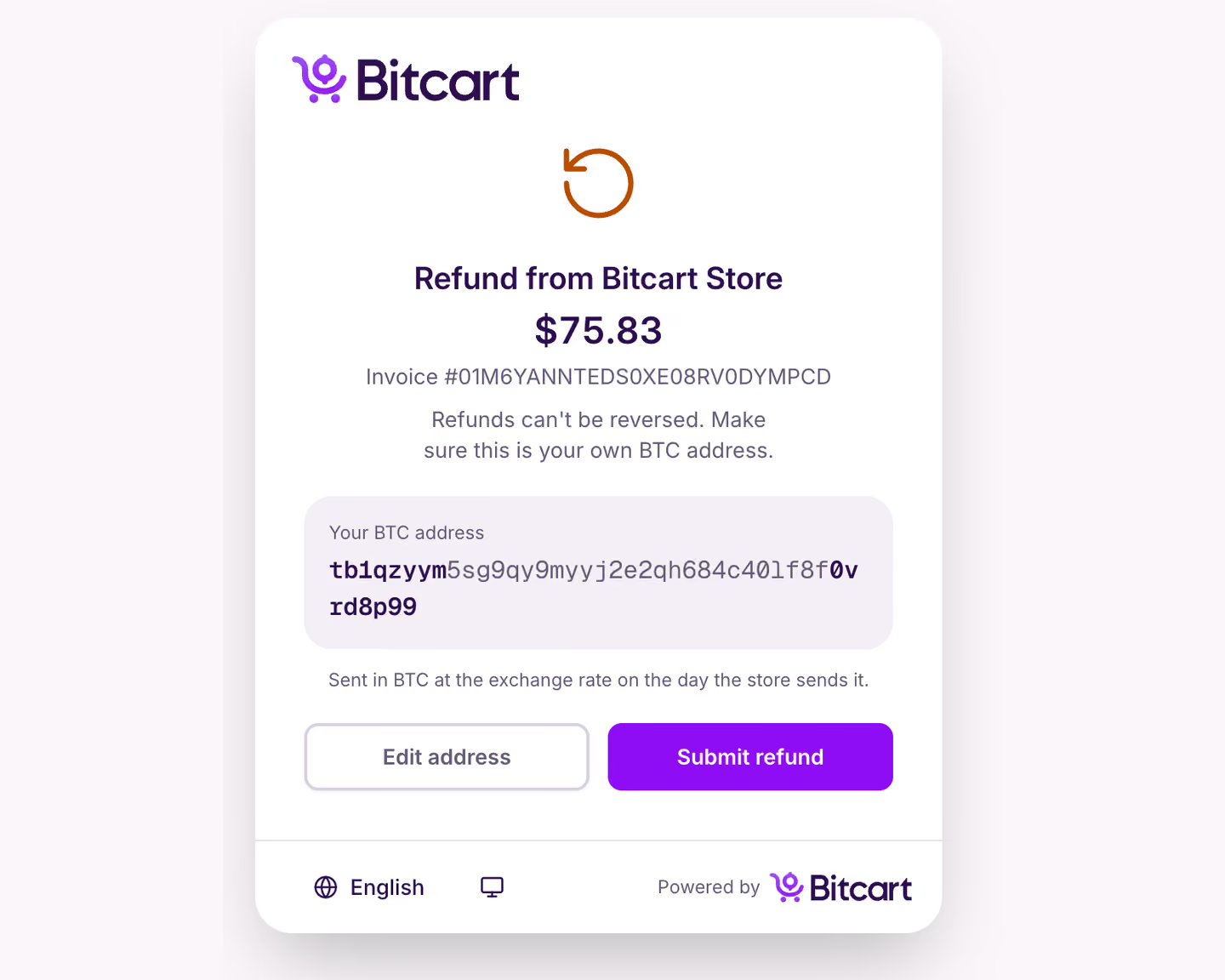
Refund links now open a page in the checkout too. Customers enter the address to receive the refund, and review it before submitting.
Embedding the checkout
There is a new embed script, /embed/v1.js. Add it to your page, create an invoice on your backend, and open the checkout with the invoice ID:
<script src="https://checkout.your.bitcart.url/embed/v1.js"></script>const checkout = window.Bitcart.open(invoiceId)
checkout.addEventListener("bitcart:status", (event) => console.log(event.detail))
checkout.addEventListener("bitcart:close", () => console.log("closed"))The checkout opens in a <bitcart-checkout> element, which fires bitcart:ready, bitcart:status, bitcart:expired, bitcart:complete, bitcart:close and bitcart:error events. When the buyer returns to the store, bitcart:complete navigates your page to the invoice's redirect URL, call event.preventDefault() to stay on the page. Full example is in our custom integration guide (opens in new tab).
The old /modal/bitcart.js script keeps working as before, so existing integrations and plugins don't need any changes.
Dark mode and languages
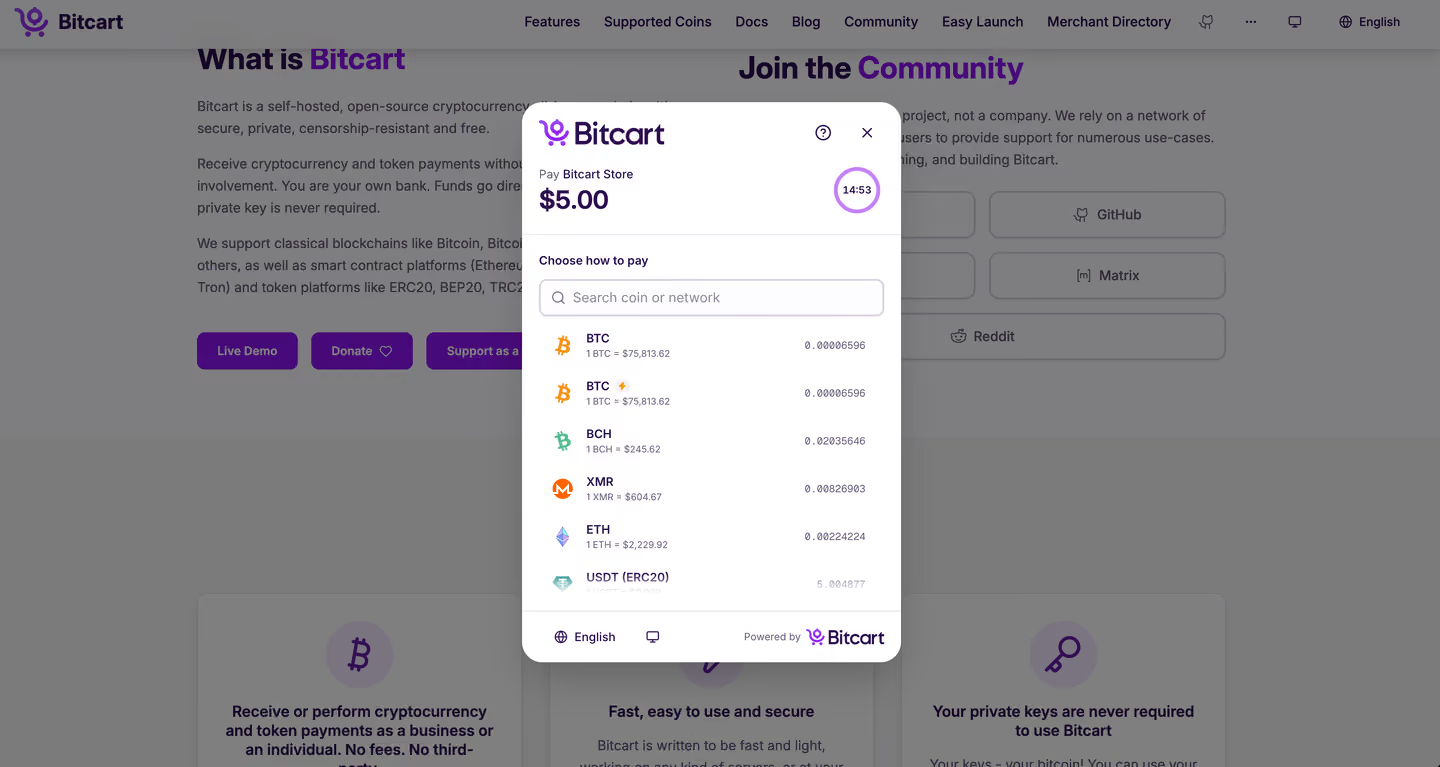
The checkout follows the system theme by default, and the button in the footer switches it. Next to it is the language menu. The checkout supports internationalization, prices and dates already follow the selected language.
Payment terminals
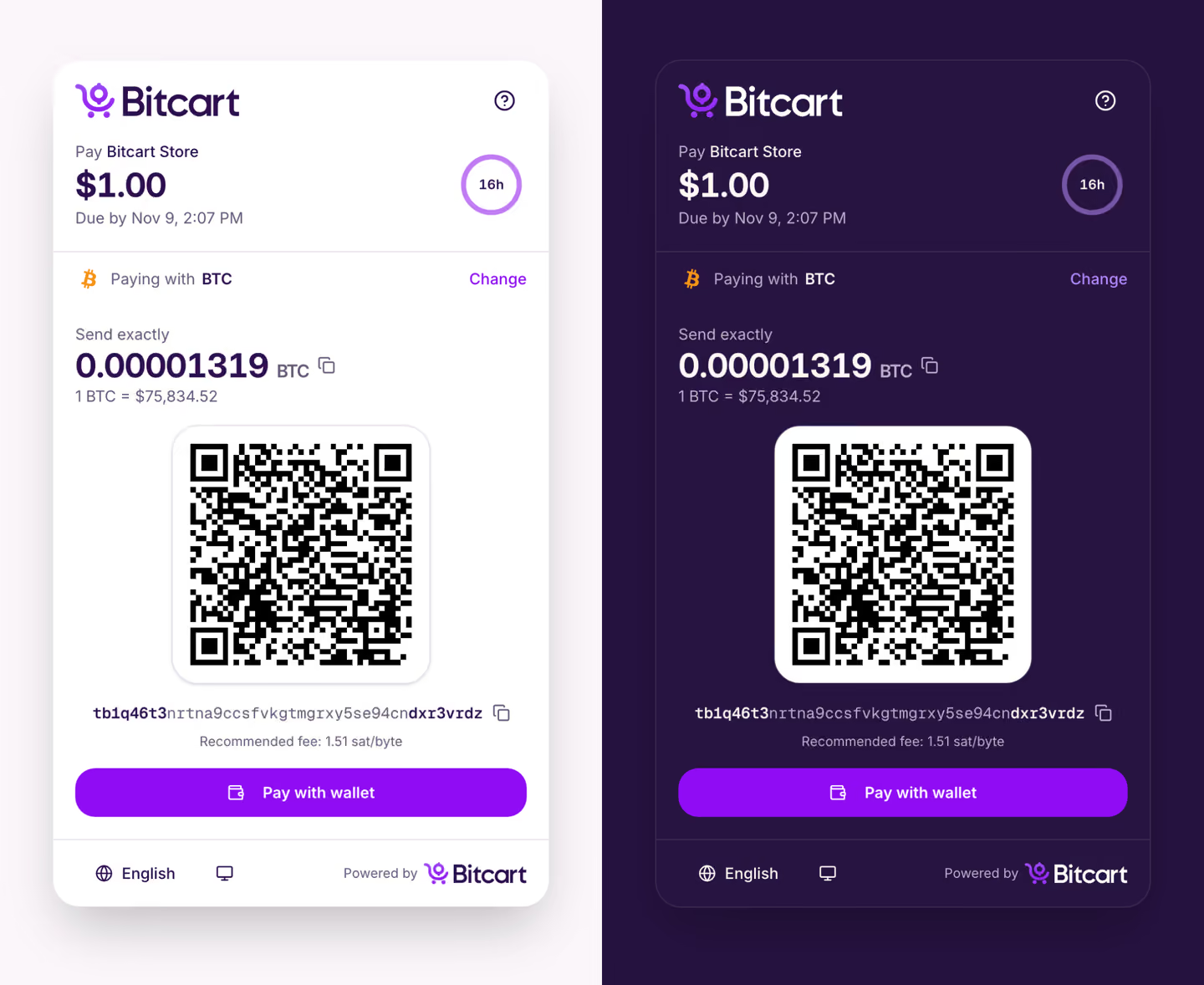
The checkout can also run on payment terminals, and print receipts on the terminal's printer.
How to enable it
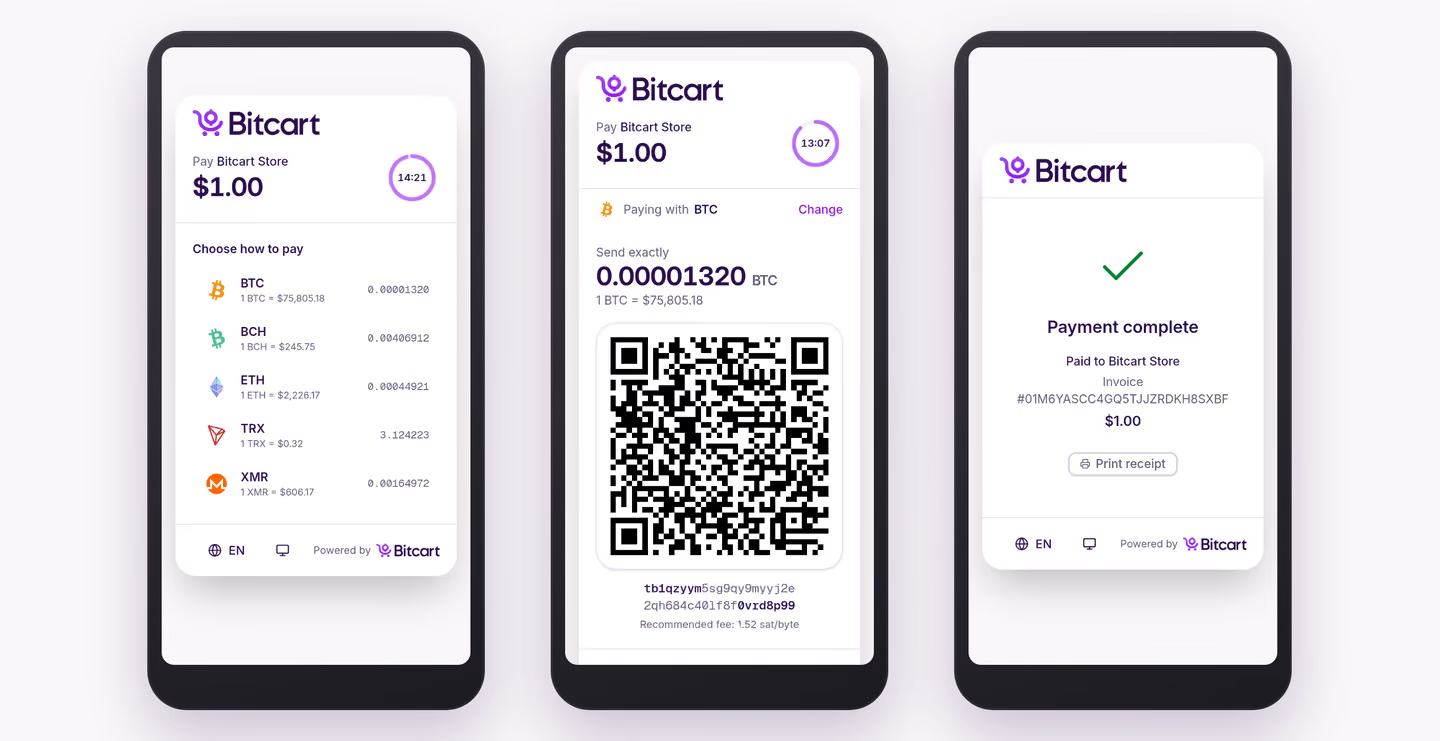
The new checkout is opt-in for now. In docker deployments, add checkout to BITCART_ADDITIONAL_COMPONENTS and run ./setup.sh:
export BITCART_ADDITIONAL_COMPONENTS="$BITCART_ADDITIONAL_COMPONENTS,checkout"
./setup.sh
Invoice links and the modal script are then served by the checkout, no changes are required in your integrations. It needs the nginx or nginx-https reverse proxy.
Everything else that changed in this release is in the 0.11.0.0 release post. If something looks wrong in the new checkout, please report it on GitHub (opens in new tab) or in our Telegram (opens in new tab).